
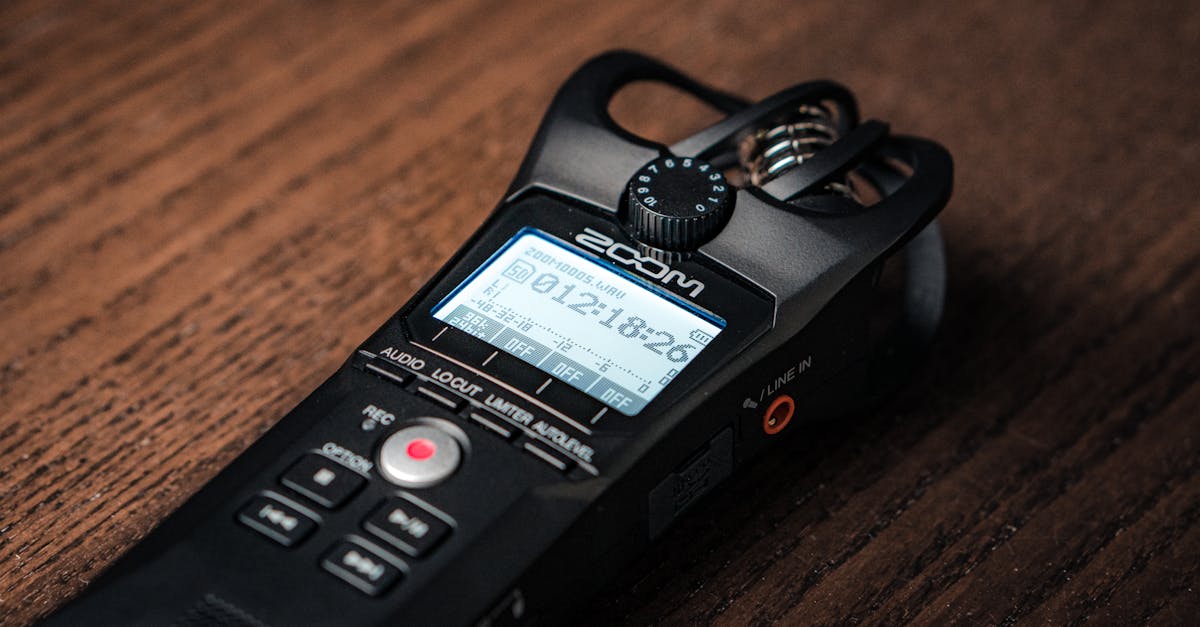
Foto de dlxmedia.hu no Pexels
How to Record Crystal-Clear Audio for Perfect Transcription: The Ultimate Guide
Learn the professional techniques to record high-quality audio that ensures 99% transcription accuracy. From microphone placement to acoustic treatment, this guide covers everything you need for flawless results.

Digital Journalist & Content Strategist
The Secret to Perfect Transcription Starts with Audio Quality
When most people think about transcription, they focus on the software or the service they use to convert speech to text. However, the secret to a flawless transcript actually begins long before you upload a file. The accuracy of any transcription tool, including advanced AI platforms like VoxScriber, is directly proportional to the quality of the input audio.
Poor audio quality leads to "inaudible" tags, missed context, and hours of manual correction. By following a few professional recording principles, you can significantly reduce errors and save valuable time. This guide will walk you through the essential steps to record crystal-clear audio every time.
1. Controlling Your Recording Environment
The environment is the most influential factor in audio clarity. Even the most expensive microphone will sound poor in a room with bad acoustics or high background noise.
Acoustic Treatment and Echo
Hard surfaces like glass, tile, and bare walls cause sound waves to bounce, creating echo or reverb. This "muddiness" makes it difficult for transcription software to distinguish individual words. To combat this, choose a room with soft furnishings like carpets, curtains, and bookshelves. If you are recording at home, a walk-in closet full of clothes is often the best-sounding "studio" available.
Eliminating Background Noise
Background noise is the enemy of transcription. Before you press record, listen closely for constant sounds that your brain might normally filter out. Turn off air conditioners, fans, and heaters. Close windows to block traffic noise and silence your phone notifications. If you are recording an interview, ensure you are in a private space where interruptions are unlikely.
2. Ideal Technical Settings for Recording
You don't need to be a sound engineer to set up your device correctly, but understanding a few technical terms will help you maintain high fidelity.
Sample Rate and Bit Depth
For voice recording, a sample rate of 44.1 kHz or 48 kHz is the industry standard. This captures the full range of human speech accurately. Regarding bit depth, 16-bit is sufficient for most voice applications, though 24-bit provides more "headroom," allowing for better quality if you need to boost the volume later during editing.
Choosing the Right File Format
Always record in a lossless or high-quality format. WAV and AIFF are uncompressed formats that preserve every detail of the audio. If storage space is an issue, a high-bitrate MP3 (at least 256kbps or 320kbps) is acceptable. Avoid low-quality voice memo formats that heavily compress the audio, as these strip away the frequencies necessary for accurate speech recognition.
3. Microphone Placement and Technique
Where you place your microphone is just as important as the microphone itself. Proper distance and orientation can eliminate common issues like "popping" sounds and low volume.
The Proximity Rule
For a single speaker, the microphone should ideally be 6 to 10 inches away from the mouth. If the microphone is too close, you may experience the "proximity effect," which makes the voice sound overly bassy and distorted. If it is too far, the microphone will pick up more room echo and less of the speaker's voice.
Avoiding Plosives and Sibilance
Plosives are those harsh "P" and "B" sounds that cause a puff of air to hit the microphone capsule. To avoid this, speak slightly off-axis—aim the microphone at your mouth, but don't speak directly into the center of it. Using a pop filter is a cheap and effective way to solve this problem instantly.
4. Strategies for Interviews: In-Person and Remote
Recording multiple people introduces new challenges, particularly regarding overlapping speech and varying volume levels.
In-Person Interviews
If you are recording an interview in person, avoid placing a single microphone in the middle of a large table. If possible, use two microphones. If you only have one, place it closer to the person who will be doing most of the talking, or use an omnidirectional setting if your microphone supports it. Remind participants to speak one at a time, as overlapping voices are the hardest thing for transcription software to decipher.
Remote Interviews
For remote recordings (Zoom, Skype, or Google Meet), avoid recording the computer's speakers with an external device. Instead, use built-in recording features or specialized tools like Riverside or Zencastr. These tools record each participant's audio locally on their own computer and then upload it, bypassing the glitches and compression of a live internet connection.
5. Maximizing Quality When Recording with a Smartphone
You don't always have a professional studio setup, and modern smartphones are actually capable of great results if used correctly.
- Don't hold the phone: Hand movements create scratching noises. Place the phone on a stable, soft surface (like a cloth or a mousepad) to decouple it from table vibrations.
- Point the bottom toward the speaker: Most smartphones have the primary microphone at the bottom. Aim this toward the source of the sound.
- Use a dedicated app: Instead of the default voice memo app, use an app that allows you to select the file format (WAV) and adjust the input gain.
- Airplane Mode: Always turn on Airplane Mode to prevent incoming calls or messages from ruining your recording.
6. Your Pre-Recording Checklist
Before you start your next session, go through this quick checklist to ensure everything is optimized for VoxScriber:
- Environment: Is the room quiet? Are fans/AC turned off?
- Equipment: Is the battery charged or the device plugged in? Is there enough storage space?
- Settings: Is the format set to WAV or high-quality MP3?
- Test: Have you recorded 10 seconds of audio and listened back to it with headphones?
- Distance: Is the microphone positioned 6-10 inches from the speaker?
- Silence: Have you instructed participants to avoid tapping the table or shuffling papers?
Conclusion: Better Audio, Better Results
High-quality transcription is a partnership between technology and the user. By taking five minutes to prepare your environment and check your settings, you can transform the results of your transcription process. You will spend less time editing and more time utilizing the insights from your audio.
Once you have captured your crystal-clear audio, the next step is simple. Upload your file to VoxScriber and watch our AI turn your high-fidelity recording into a highly accurate transcript in minutes. Ready to experience the difference that quality makes? Try VoxScriber today.
Related tools
About the author
Digital Journalist & Content Strategist
I've worked in digital journalism and content strategy for over nine years, covering technology, media, and the creator economy. Along the way, transcription became one of my essential tools — turning podcast interviews into articles, video content into searchable text, and live meetings into actionable notes.